

Employee Document Upload (Mobile) Quick Start Guide
Goal
The goal of the Mobile EDU (Employment Verification Documents Upload) feature is to enable Employees and Authorized Employer Representatives to select, upload, and verify Form I-9 documents on a mobile device through a guided workflow.
Create Form I-9
- Log in as an I-9 Manager and create a new Form I-9.
- Select a Remote I-9 workflow.
- Enter the required details.
For additional details, refer to Remote Section 1 and Section 2 via Mobile.
Note: Tracker supports five remote workflows. This guide demonstrates one workflow, Employer Appoint, as an example using the mobile application.
Complete Section 1
- The Employee enters the required information to complete Section 1.
- Enter employee name, identification, and contact details.
- Select the employment status.
- Enter the legal name and select “Sign Form I-9 Electronically”.
- After signing, the Instructions screen appears with document guidance.
Mobile EDU Page
The Instructions screen provides an overview of document requirements.
Note: Images are displayed using the default Mitratech colors. If co-branding is enabled, co-branded colors are applied. For additional details, refer to the Co-branding feature guide.
The Progression chevrons display the previous, active, and the next stages in the Form I-9 process.

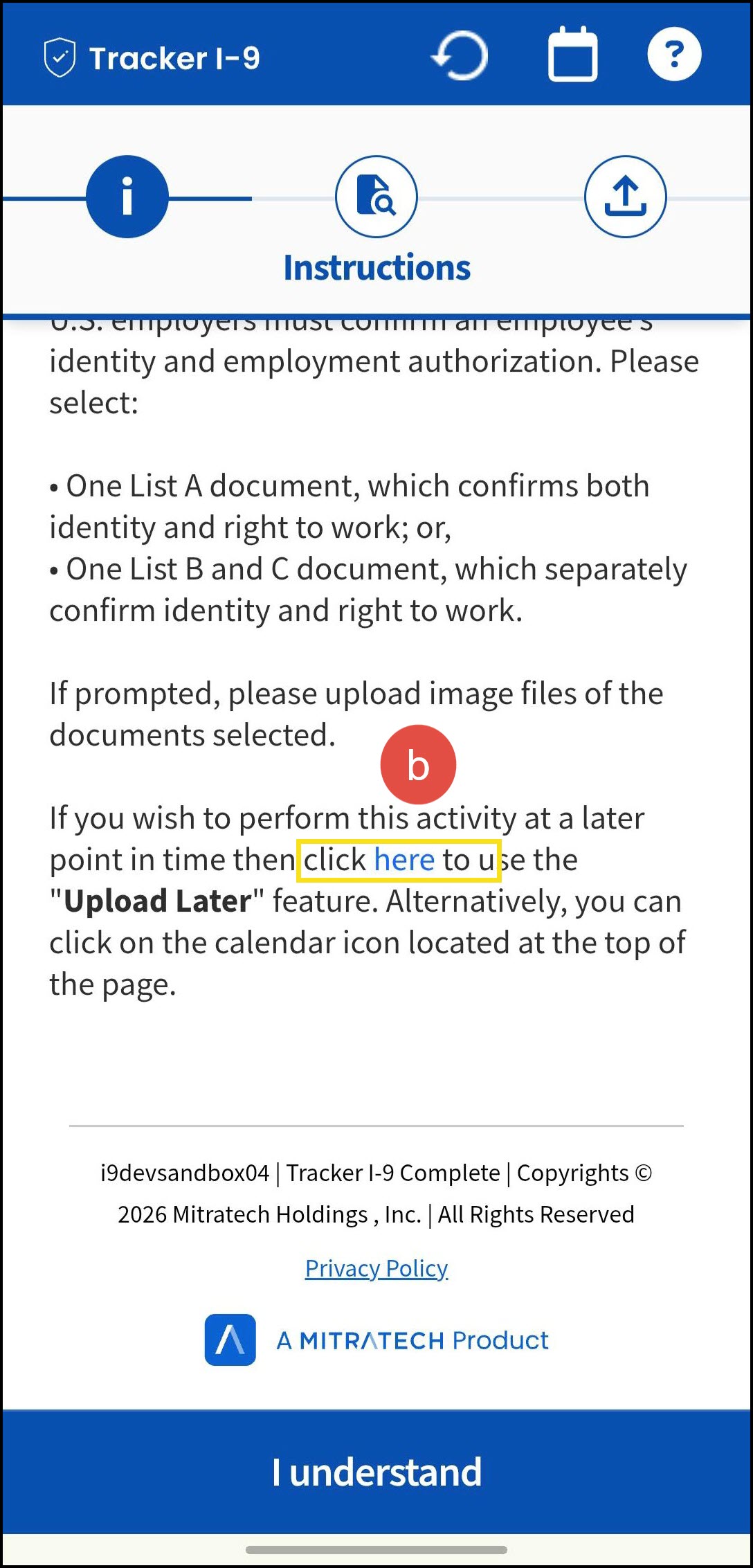
Header Actions
a. Reset
Tap “Reset” icon to restart the document selection and upload process.
Regardless of whether documents have been uploaded, clicking Reset displays a confirmation message: “Changes made within the page will be lost. Are you sure you want to Start Over?”

- No – Closes the confirmation message without removing any uploaded files.
- Yes – Removes all uploaded documents and returns the Instructions page.
b. Upload Later
The Employee can tap on this button to skip the EDU task and receive a reminder to complete it later after providing/verifying the email address/mobile number in the confirmation dialogue box.

The employee can edit the contact information (email address or mobile number) before sending.
Yes: Sends an email or SMS with instructions to complete EDU later and proceed to the Form I-9 Next Steps screen.


EDU Reminder Behavior
When the Employee selects Upload Later, the system sends reminders to prompt completion of the EDU step.
- An immediate reminder is sent after the Employee confirms the contact details.
- If the EDU step remains incomplete, reminders are sent daily at 11:00 AM EST.
- Reminders continue until one of the following occurs:
- The Employee completes the EDU step
- Section 2 is completed
- The Section 2 due date is reached
Note: Reminders stop automatically once the EDU step is completed or the Section 2 due date has passed.
c. General Information
Tap the Help icon to view additional information.

Tap I understand to continue.
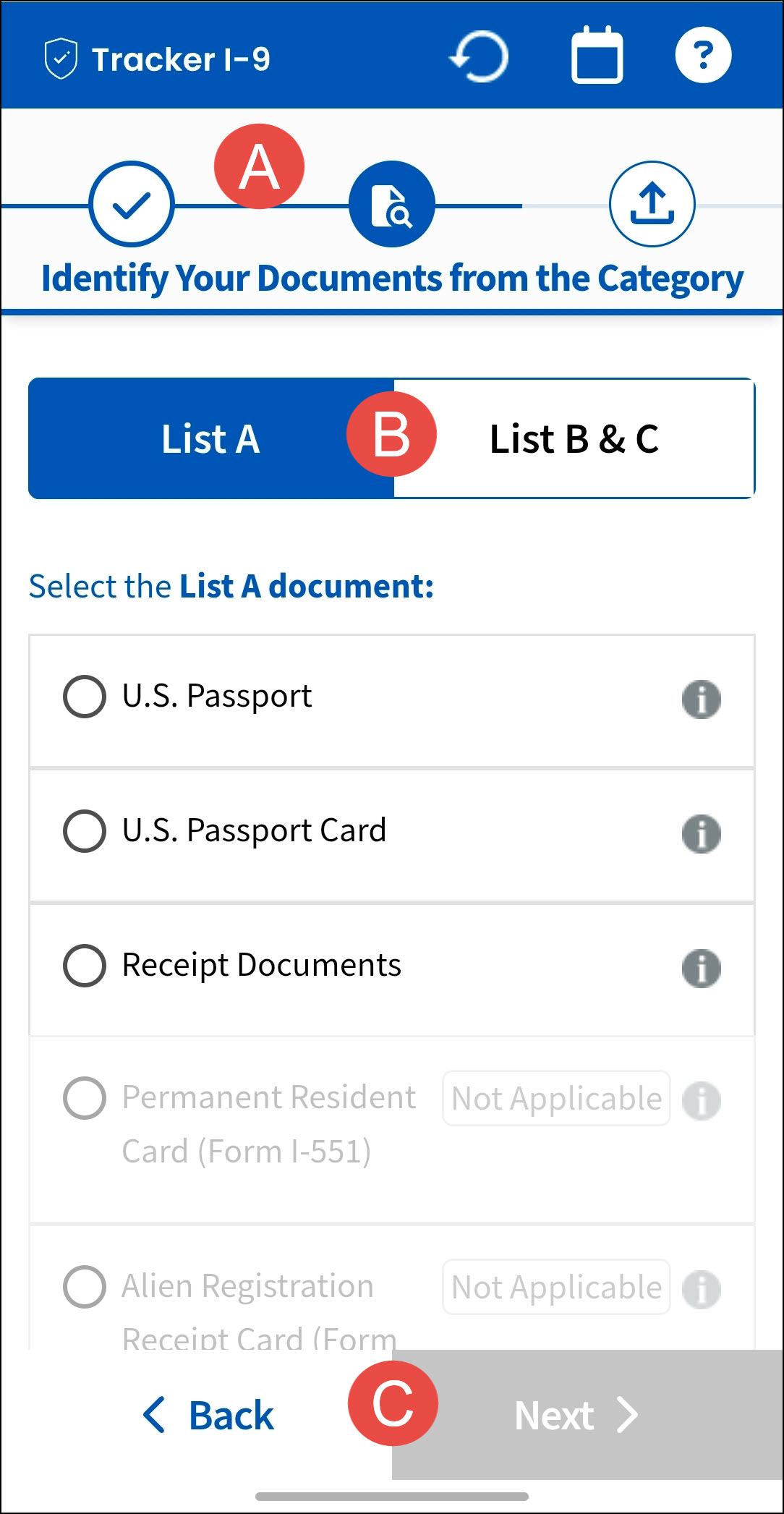
A. Dynamic Steppers
Each step in the EDU process is represented by a stepper, helping employees track their progress. Completed steps are marked with a check icon, the current step is highlighted, and upcoming steps display relevant action icons.
Stepper behavior and layout vary based on the scenario (No Attachments, All Attachments, Photo Match, and Special Placement).


B. Employee Document Selector
Displays List A, B, and C document categories with their respective acceptable documents, allowing employees to quickly toggle between categories and select the appropriate document(s) for Section 2 verification.

i. List A (Both Identity & Employment Eligibility):
- List A documents establish both identity and employment authorization. Employees may present any acceptable List A document. In certain cases, additional supporting documents may be required to verify employment authorization.
- A document type must be selected before proceeding to the EDU document upload page.
ii. List B (Identity) and C (Employment Authorization):
- List B documents establish identity, while List C documents verify employment authorization. If List B is selected, the List C is also required. Available document lists may vary based on the employee’s age or citizenship status.
The Employee can switch between List A and List B & C while on the document selection screen.
Document Display by Employment Status
- Document Name: Displays the eligible document names with information ('i') icon instructions.
- Additional Documents: Displays any additional required documents based on the selected document type.
- More Details pop-up: A modal pop-up is displayed when the user clicks the information (“i”) icon next to the document name. The pop-up may include sample image, description, document number locator, and E-Verify information.
Tap the Close (X) icon to return.


The Next button is disabled by default. The system enables this button after selecting a document from List A or documents from both List B and List C.
Receipt Documents: Employees may select this document type if their original document was lost, stolen, or damaged, and they have received a receipt when applying for a replacement.

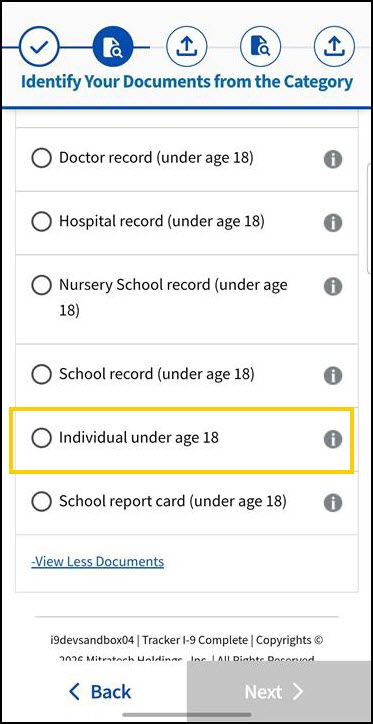
Tap “+ View More Documents” to expand and view the available under age 18 other List B documents.

Tap “– View Less Documents” to collapse the expanded document list.

Individual Under 18:
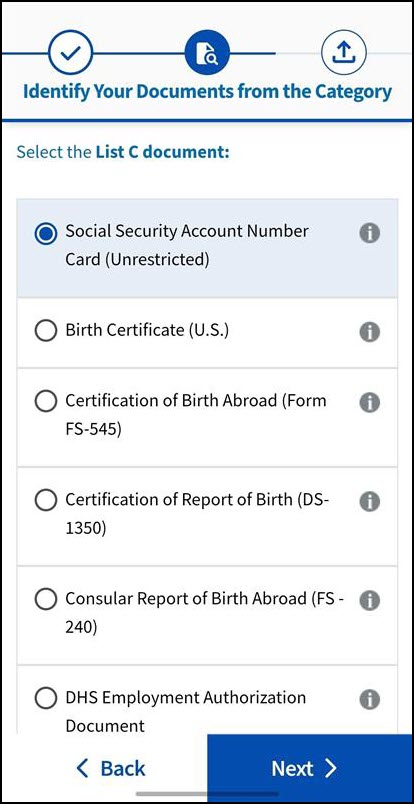
- When “Individual Under 18” is selected under List B, select a corresponding List C document. Since no upload is required for List B, only the List C document tile is displayed. Upload the required List C document, then tap "Finish" to complete the process.
- Tap Next to proceed. Since the “Individual Under 18” does not require a document upload, no document tile display for List B.
- Upload Required document using the List C document tile.
- Tap Finish to complete the process.

Ineligible Documents
- All ineligible documents appear disabled or grayed out.
- A Not Applicable pill appears next to these documents.

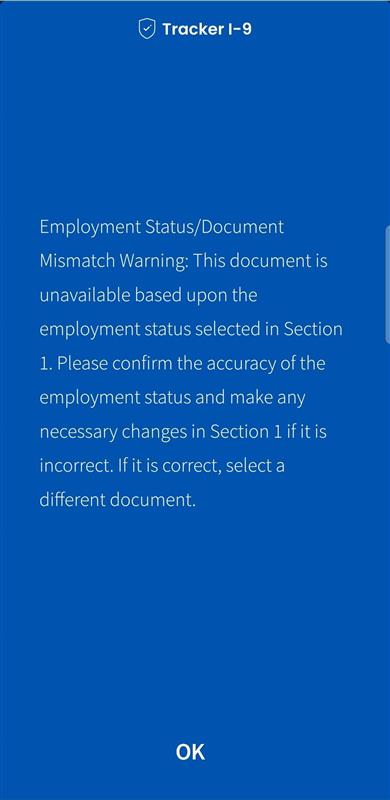
- When the Employees attempt to select these documents, a “Document Unavailable” pop-up message is displayed. The message content may vary depending on the document selected.
- Tap OK to return.
Document Upload
Enables employees to upload and submit required documents for Identity and employment authorization verification.
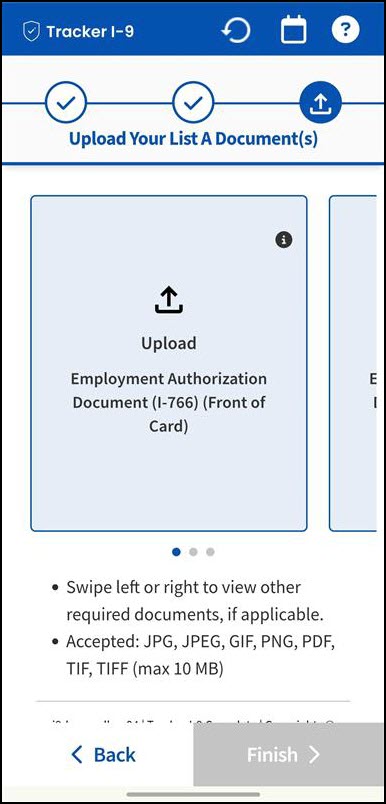


- Document tiles: Interactive tiles that display document name. It also allows users to upload images or view additional details.
- More Details icon: Tap “More Details” opens a modal pop-up displaying a sample image, along with the document description, sample, document number locator, and E-Verify information. Tap Close (X) icon to return.
- Upload icon: Tap Upload icon to upload document. The tiles change from blue (before upload) to green (after upload), and uploaded files appear as thumbnails.
- If additional documents are required, corresponding tiles are displayed. If multiple documents are required, swipe left or right to navigate between tiles.
- The carousel indicator shows the total number of tiles and the currently active selection.
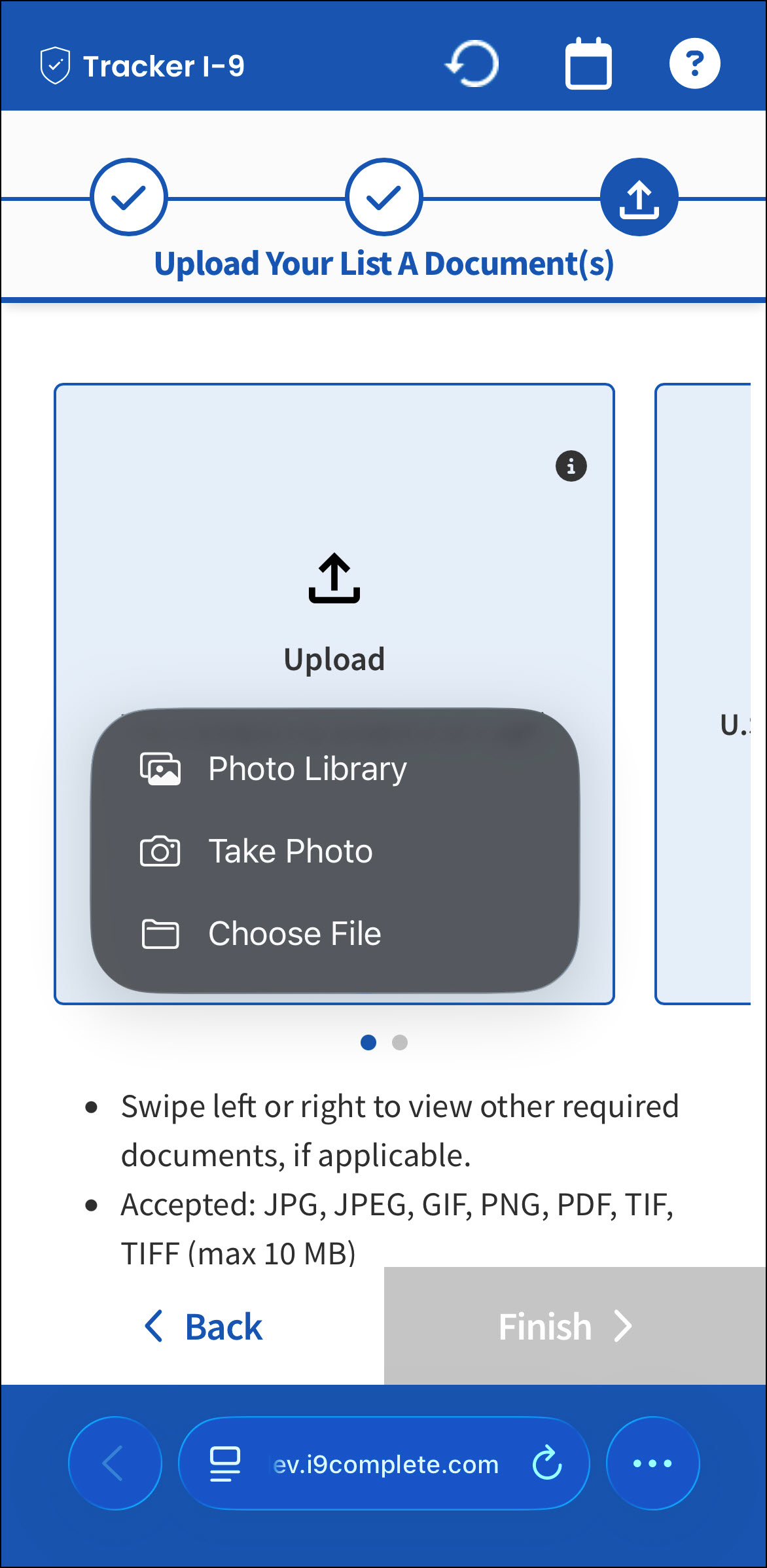
The following table explains the different document options on iOS and Android devices:
| iOS | Android |
|---|---|
 |
 |
|
Tap Photo Library to select an image. Tap Take Photo to capture an image, then select Retake or Use Photo. Tap Choose File to choose a file from the device. |
Tap Camera to capture an image, then select Retake or Use Photo. Tap Photos and Videos to select an image from the gallery or choose a file from the device. |
- Supported file formats: JPG, JPEG, GIF, PNG, PDF, TIF, and TIFF (up to 10 MB).
Note: HEIC/HEIF image files are supported when uploaded via the Photo Library on iOS, as the OS automatically converts them to a compatible format during upload. However, uploads via the “Choose File” option will retain the original format and are not supported.
After uploading, the document displays as a thumbnail and the tiles change from blue (before upload) to green (after upload), and uploaded files appear as thumbnails.
Note: Thumbnails are not supported for .pdf, .tif, and .tiff files. A placeholder image is shown with the message: “Thumbnails cannot be displayed. Click View Uploaded Document to open the file.”
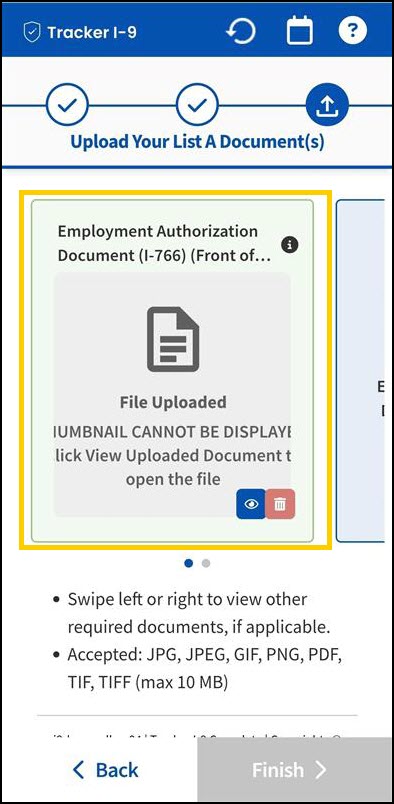

View and Delete
- Tap View icon (eye icon) opens a pop-up displaying the uploaded file, including the document name, file type, and file size (e.g., US Passport.jpg | 1 MB).

- Tap Close (X) icon to return.

- Tap Close (X) icon to return.
-
Tap the Delete icon removes an uploaded document. A confirmation message is displayed.
-
Yes – Deletes the uploaded file.
-
No – Closes the confirmation message without deleting the file.
-
C. Navigation
- After all required documents are uploaded, the Finish button becomes enabled.

- Tap Back to return to the previous screen.
- Tap Finish to continue. A confirmation message appears:

- Yes – Navigates to the Next Steps page.
- No - Closes the pop-up without proceeding.
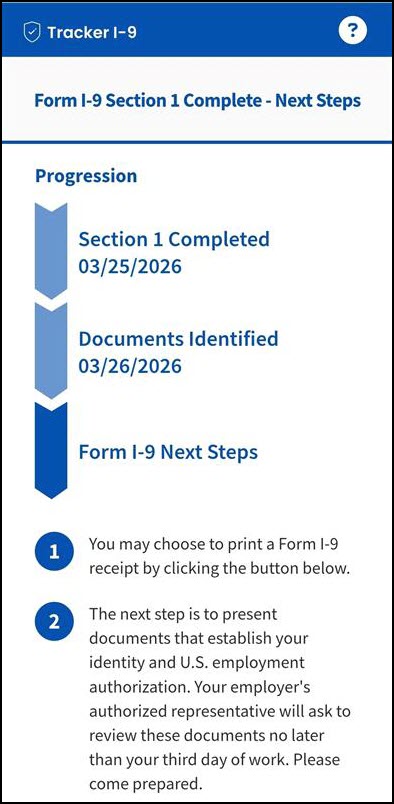
Section 1 Complete – Next Steps
The progression chevrons for EDU is marked as complete and the next steps as active stage.

Document Selection or Upload Scenarios
The table below illustrate the different document selection scenarios and (when required) how employees will upload images:
| Client Configuration | Document Selection Behavior | Document Upload Behavior |
|---|---|---|
| E-Verify: OFF Attachment Setting: No Attachments |
The Employee can only select the List A, B, and C documents. After selecting the documents, the Employee taps Finish to display the confirmation message to submit the EDU step. | NA |
| E-Verify: ON Attachment Setting: E-Verify Photo Match |
The Employee can select the List A, B, and C documents. Only certain List A documents require image uploads, and the Employee proceeds through the steps. After selecting the List B and C documents, tapping Finish on the final screen displays the confirmation message to submit the EDU step. |
The Employee can upload only List A front and back pages for the following documents:
|
| E-Verify: ON Attachment Setting: All Attachments |
The Employee can select the List A, B, and C documents, tap Next to proceed through the steps to the document upload page, and tap Finish on the final screen to complete the EDU process. | The Employee can upload the front and back pages of the List A documents and can upload only the front pages of the List B and C documents. |
| E-Verify: ON Attachment Setting: E-Verify Photo Match RDI: ON |
The Employee can select the List A, B, and C documents and tap Next to proceed to the document upload page, and tap Finish on the final screen to complete the EDU process. | The Employee can upload the front and back pages of the List A, B and C documents. |
| E-Verify: ON Attachment Setting: All Attachments RDI: ON |
The Employee can select the List A, B, and C documents and tap Next to proceed to the document upload page, then tap Finish on the final screen to complete the EDU process. | The Employee can upload the front and back pages of the List A, B and C documents. |
For example: When the E-Verify: OFF and Attachment Setting: No Attachments is selected, the following screens will displayed.

E-Verify: ON
Attachment Setting: All Attachments
RDI: ON

