

How to Update an Employer Representative
This shows how a user can update the employer representative for a remote I-9.
Goal
Users can update the employer representative for the Employer Appoint and Employee Appoint I-9s if Section 2 is not signed.
Steps
- Search for the employee and click the Next Action link to open the employee’s Form I-9 record.
- Navigate to the Remote I-9 or Employee Appoint I-9 tab.
- Open the I-9 menu.

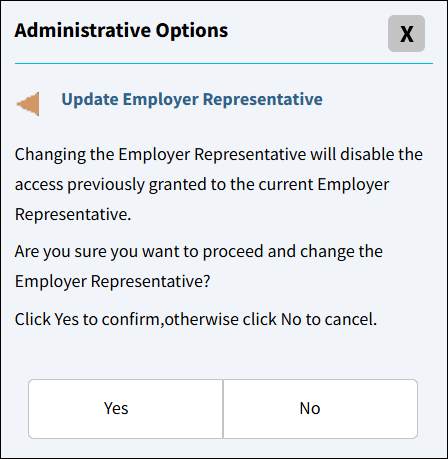
- Select Update Employer Representative.
- Click Yes to confirm.

- Enter the employer representative information. Click Continue.

- The system sends the remote Section 2 email notification to the employer representative email address provided.