

Distributor Packages Feature Guide
Background and Introduction
Mitratech introduces the Distributor Packages feature to simplify how Clients are configured and managed within a distributor environment. Distributor Packages allow administrators to create reusable packages that contain predefined configuration settings, including Product Configurations, Email Settings, General Site Settings, logo configuration, and System Message and Instructions Settings.
These packages can be applied to one or more Clients to help maintain consistent configurations and reduce the effort required to manage Client settings individually.
Administrators can create and manage Distributor Packages from the Distributor Packages page. Packages can be activated, deactivated, updated, and assigned to Clients as needed. When a Client is assigned to a Distributor Package, the Client inherits the configuration settings defined in that package, and updates made to the package apply to all Clients currently assigned to it.
This guide explains how to create and manage Distributor Packages, assign packages to Clients, update package assignments, and understand how configuration changes affect associated Clients.
Distributor Packages Feature Summary
The Distributor Packages feature enables administrators to standardize Client configuration by applying predefined settings through reusable packages. Administrators can assign, change, or remove package assignments for Clients as needed.
The assigned Distributor Package for each Client is also visible in the Export Client Records to Excel report, providing visibility into Client configuration.
Distributor Packages
- Log in as a Distributor Administrator with full access.

- Navigate to Admin Control Panel.
- Open System Settings.

- Click the Distributor Packages tab.

Distributor Packages Journey
On the Manage Distributor Packages screen, the Create New Distributor Package accordion appears at the top of the page by default.

- Click the Create New Distributor Package accordion to expand the section.
- The following containers appear.

- General Information

- Package Name (Required): Identifies the Distributor Package and the reusable set of default settings that can be applied to one or more Clients.
- The value must contain 1–100 characters.
- The Package Name must be unique within the Distributor.
- If the entered "Package Name" already exists for another Distributor Package (Active or Inactive) and the user clicks Save, the system displays the following validation message at the top left of the page:

- # of Clients: Displays the number of active Clients currently assigned to the Distributor Package.
- This value is automatically calculated.
- The field is read-only.
- Status: Indicates whether the Distributor Package is Active or Inactive.
- Active packages can be assigned to Clients.
- Inactive packages remain available for reference but cannot be assigned.
- External Package ID (Required): Defines the unique external identifier used when assigning Distributor Packages to Clients through API integrations.
- The value must not exceed 50 characters.
- The External Package ID must be unique within the Distributor.
- If the entered "External Package ID" already exists for another Distributor Package and the user clicks Save, the system displays a validation message at the top left of the page:

- Package Name (Required): Identifies the Distributor Package and the reusable set of default settings that can be applied to one or more Clients.
- Product Configurations
This section allows the Distributor Administrator – All Access to enable or disable product features for the Distributor Package.
The system dynamically displays additional sections based on the selected Product Configurations.

- Form I-9 Options: This tab appears when the user selects any Product Configuration option. Some options are automatically selected, while others must be selected by the user based on the required configuration.
Note: I-9 Resolve is managed independently from Distributor Packages and is treated as a client-level add-on. Enabling or configuring I-9 Resolve does not affect a client’s Distributor Package assignment, and its settings remain unchanged regardless of package assignment, reassignment, or removal. This feature is controlled by MItratech and is not configurable through Distributor Packages.
- Section 1 Remote Access Settings: This section appears when “Enable Remote Section 1 Only” is selected.
- Employer Appoint Remote Access Settings: This section appears when “Enable Employer Appoint”, “Enable Employee Appoint”, or both options are selected.
- Section 3 Remote Access Settings: This section appears when “Enable Remote Access Section 3” is selected.
Note: The Enable I-9 Resolve Functionality option is disabled for Distributor Administrator - All Access and Read Only users.
- Form I-9 Options: This tab appears when the user selects any Product Configuration option. Some options are automatically selected, while others must be selected by the user based on the required configuration.
- User Password Settings
- Displays the password settings associated with the Distributor Package.
Note: This section is read-only for Distributor Administrator - All Access and Read Only users.

- Displays the password settings associated with the Distributor Package.
- Email Settings
- Configure email settings that are associated with system-generated reminders and messages.
Note: If a custom “From Address” is needed, additional backend setup needs to be completed. Please reach out to the I-9 Support Team for assistance.
- The content of various reminders and messages are managed through the Email Template Customization feature. For configuration details, refer to the Email Template Customization Guide.
- Configure email settings that are associated with system-generated reminders and messages.
- General Site Settings
- Displays additional system configuration options associated with the Distributor Package. These settings control various system behaviors such as data masking, email uniqueness, employment age restrictions, and workflow-related features.

- Displays additional system configuration options associated with the Distributor Package. These settings control various system behaviors such as data masking, email uniqueness, employment age restrictions, and workflow-related features.
- Upload Client Logo
- The system displays the logo for the Distributor Package.
- Click Choose File to select a logo file.
- Click Upload to upload the selected logo.
- Click Delete Logo to remove the current custom logo.

- Logo Inheritance
- If no custom logo is uploaded, the Distributor Package inherits the logo from the Distributor.
- If a custom logo is uploaded, the Distributor Package logo overrides the inherited logo and becomes the default logo for all Clients assigned to the package, unless a Client uploads its own custom logo.
- If a custom logo is not configured at the Client, Distributor Package, or Distributor level, the system uses the System logo.
- The system displays the logo for the Distributor Package.
- System Message and Instructions Settings
- Configure system messages and workflow instructions associated with the Distributor Package.

- Configure system messages and workflow instructions associated with the Distributor Package.
- Save and Cancel
- Save: Click Save to commit all changes on the page. The system displays a confirmation pop-up:

- Click Cancel to close the pop-up without making changes.
- Click Continue to commit the changes.
The system updates the package and refreshes the page automatically.

- Click OK to dismiss the confirmation message.
- Save: Click Save to commit all changes on the page. The system displays a confirmation pop-up:
- General Information
- Configure the required settings.
When one or more settings are updated for an existing Distributor Package, click Save. The system displays a confirmation pop-up.

- Click No to close the pop-up without saving changes.
- Click Yes to commit the changes.
After the changes are committed, the system displays a confirmation message.
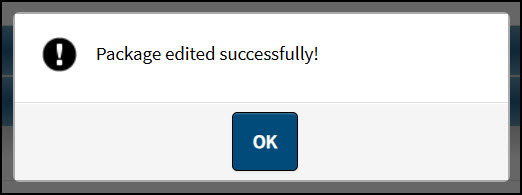
- Click OK to close the message.
Note: Changes made to a Distributor Package apply to all Clients assigned to the package, regardless of whether the Client status is Active or Inactive.
- Each existing Distributor Package appears as an accordion row displaying the Package Name. The Status appears on the right side of the row.
- Review the list of existing Distributor Packages. The system sorts Distributor Packages alphabetically by Package Name.

Assign a Distributor Package
Use Assign Package option to assign a Distributor Package to the Client. Follow these steps:
- Log in as an Administrator.
- Search for a Client and open the Client profile.
- Navigate to Client Configuration.
- The Assign a Package container appears at the top of the page on the Features tab in the following cases:
- The Client is assigned to a Distributor, and
- The Distributor has at least one active Distributor Package configured, and
- The Client is not currently assigned to a Distributor Package.

- Hover over the Assign a Package tooltip icon to display the following message: “Assigning a package applies the package’s configured workflow, feature, email, and site settings to this client.”
A System Administrator or Distributor Administrator - All Access User can either update the Product Configurations, Email Settings, General Site Settings, logo configuration, and System Message and Instructions Settings individually on this page or assign the Client to an active Distributor Package to apply predefined settings. - Click Assign Package. The Assign New Package pop-up modal appears.

- Choose a value from Select a Package.

- The dropdown displays all active Distributor Packages associated with the Distributor.
- Click Cancel to close the pop-up without assigning a package.
- Click Continue to assign the selected package.

Note: When a Client is assigned to a Distributor Package, the Client inherits all predefined configuration settings configured in that package.
After the package is assigned, the system refreshes the page and displays a confirmation message. - Click OK to close the message.

- After the page refreshes, the Package Details container appears at the top of the page.
- The Package Details container includes the following read-only fields:
- Package Name
- Status
- External Package ID
These fields display the details of the Distributor Package assigned to the Client.

Change Distributor Package
Use Change Package option to assign a different Distributor Package to the Client.
- Click Change Package.

- The Assign New Package pop-up modal appears.
- Follow the same steps described in Assigning a Package to select and apply a package.
- After the package is changed, the Package Details container updates to display the newly assigned package.
Note: When a package is changed, the Client inherits all settings configured in the newly selected Distributor Package.

Change Package Button Availability
If no other active Distributor Packages are available for assignment, the Change Package button is disabled.

Hover over the Change Package button to display the following message: “No other active distributor packages are available to assign to this client.”

Remove Assigned Distributor Package
- If an Administrator updates any settings manually and clicks Save, the system displays a confirmation message.

- Click Cancel to close the pop-up without saving changes.
- Click Continue to remove the Client’s association with the current package and apply the updated configuration settings.
- After the change is confirmed, the system refreshes the page and removes the package association.
- The Assign a Package container will appear.

Change Distributor Package Status
When the Distributor Administrator - All Access changes the Status, the system displays different confirmation messages depending on the Client assignments.
Change Status from Active to Inactive
When the Status of a Distributor Package is changed from Active to Inactive, clicking Save displays a confirmation message.

Scenario 1: No Active Clients Assigned
If no active Clients are assigned to the Distributor Package, the system displays a confirmation pop-up.

- Click Cancel to close the pop-up without making changes.
- Click Continue to proceed with the status change.
The system displays a confirmation message.

- Click OK to close the message.
- The page refreshes and the Distributor Package status updates to Inactive.
Scenario 2: One or More Active Clients Assigned (Active Packages Available)
If one or more active Clients are assigned to the Distributor Package, the system displays a confirmation pop-up.

- Click Cancel to close the pop-up without making changes.
- Click Continue to proceed.
The system displays two options for managing the assigned Clients.
Keep existing client assignments
Clients remain assigned to the inactive Distributor Package.
- Select Keep existing client assignments.

- Click Continue.
The system refreshes the page and displays a confirmation message.

- Click OK to close the message.
- The Status changes to Inactive, and the # of Clients value remains unchanged.
Reassign clients to another active package
Clients are reassigned to another active Distributor Package.
- Select Reassign clients to another active package.

- Choose a value from Select a Package.

- Click Continue.
The system refreshes the page and displays a confirmation message.

- Click OK to close the message.
- The Status changes to Inactive, and the # of Clients value updates to 0.
- Clicking Continue without selecting an option displays the following validation message: “Select one of the options above and click Continue to proceed.”

Scenario 3: One or More Active Clients Assigned (No Active Packages Available)
If one or more active Clients are assigned to the Distributor Package and no other active Distributor Packages are available, a confirmation pop-up displayed.


- Click Cancel to close the pop-up without making changes.
- Click Continue to proceed.
The system displays an additional pop-up indicating that no active Distributor Packages are available for reassignment.

- Click Cancel to close the pop-up without making changes.
- Click Continue to proceed with inactivating the package.
The system refreshes the page and displays a confirmation message.
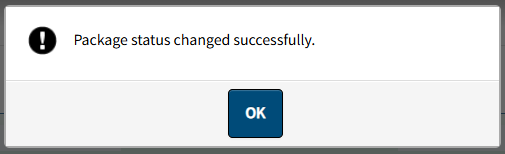
- Click OK to close the message.
- The Status updates to Inactive, and the assigned Clients remain associated with the inactive Distributor Package.

Change Status from Inactive to Active
When the Status of a Distributor Package changes from Inactive to Active, clicking Save displays a confirmation message.

- Click No to close the pop-up without making changes.
- Click Yes to proceed.
The system displays a confirmation message.

- Click OK to close the message.
- The Status updates to Active.
Export All Records to Excel Report
Generate an Excel report containing Client information and the assigned Distributor Package details.
- Log in as a System Administrator, Distributor Administrator – All Access, or Distributor Administrator – Read Only.
- Click Export Client Records to Excel on Client List View page.

- The system generates an Excel report that includes the Distributor Package assigned to each Client, if applicable.

Distributor Packages API
Distributor Packages are also supported through the Client API endpoints. API users can assign, update, or remove a Distributor Package for a Client using the ExternalPackageID argument in the POST and PATCH Client APIs.
When ExternalPackageID is provided, the Client inherits the configuration settings defined in the associated Distributor Package, including Product Configurations, Email Settings, General Site Settings, logo configuration, and System Message and Instructions Settings.