

EDU Pre-Section 2 Visibility Feature Guide
Background and Introduction
Tracker I-9 introduces Employee Document Identification & Upload (EDU) Pre-Section 2 Visibility to help I-9 Managers review an employee's EDU activity before completing Section 2.
With earlier visibility into EDU activity, I-9 Managers can identify and address issues before remote section 2 verifications/appointments, reducing rejected Section 2s, failed appointments, and I-9 amendments.
This guide explains how to review EDU status and uploaded documents, send a document upload request, and track the EDU status/activity under the new reporting features in Tracker I-9.
Summary
The EDU Pre-Section 2 Visibility feature displays a new Employee Document Upload section on the I-9 Manager Waiting page for supported remote workflows, and a document upload status banner on the Onsite Section 2 page for the Remote Section 1 Only workflow. Depending on the workflow, I-9 Managers can review EDU status, uploaded documents, request document uploads before Section 2 is completed, and track EDU status and activity dates through the I-9 Record Summary List View and I-9 Custom Report.
Before You Begin
Review the following before using this feature.
EDU Pre-Section 2 Visibility is supported for the following remote workflows:
- Employee Appoint
- Employer Appoint
- Network Alliance
- I-9 Pro / I-9 Pro + E-Verify
- Remote Section 1 Only
Depending on the workflow, the EDU status is displayed in the following locations:
- I-9 Manager Waiting page for Employee Appoint, Employer Appoint, Network Alliance, and I-9 Pro / I-9 Pro + E-Verify workflows.
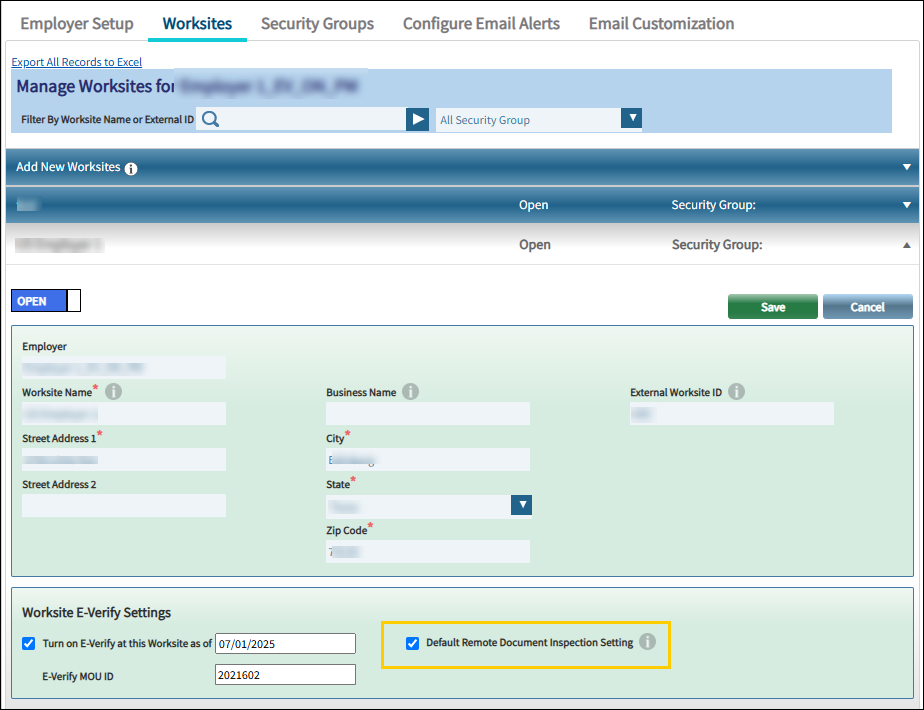
- Onsite Section 2 page for the Remote Section 1 Only workflow where EDU for Remote Section 1 is enabled or Remote Document Inspection was set to ON at I-9 creation.
- Onsite Section 2 page for Multi-Use Link I-9 records where EDU for Remote Section 1 is enabled or Remote Document Inspection was set to ON under the Client Settings>Employer>Worksite level.
Note: This feature is available only when Employee Document Identification & Upload (EDU) or Remote Document Inspection (RDI) is enabled at the client level. If neither is enabled, the Employee Document Upload section, banner, and reporting fields will not be displayed.



Reviewing EDU Status on the I-9 Manager Waiting Page
The Employee Document Upload section displays a descriptive text, the employee's current EDU status, relevant activity dates (Submitted Date or Skipped Date), any uploaded documents, and the Request Document Upload button.
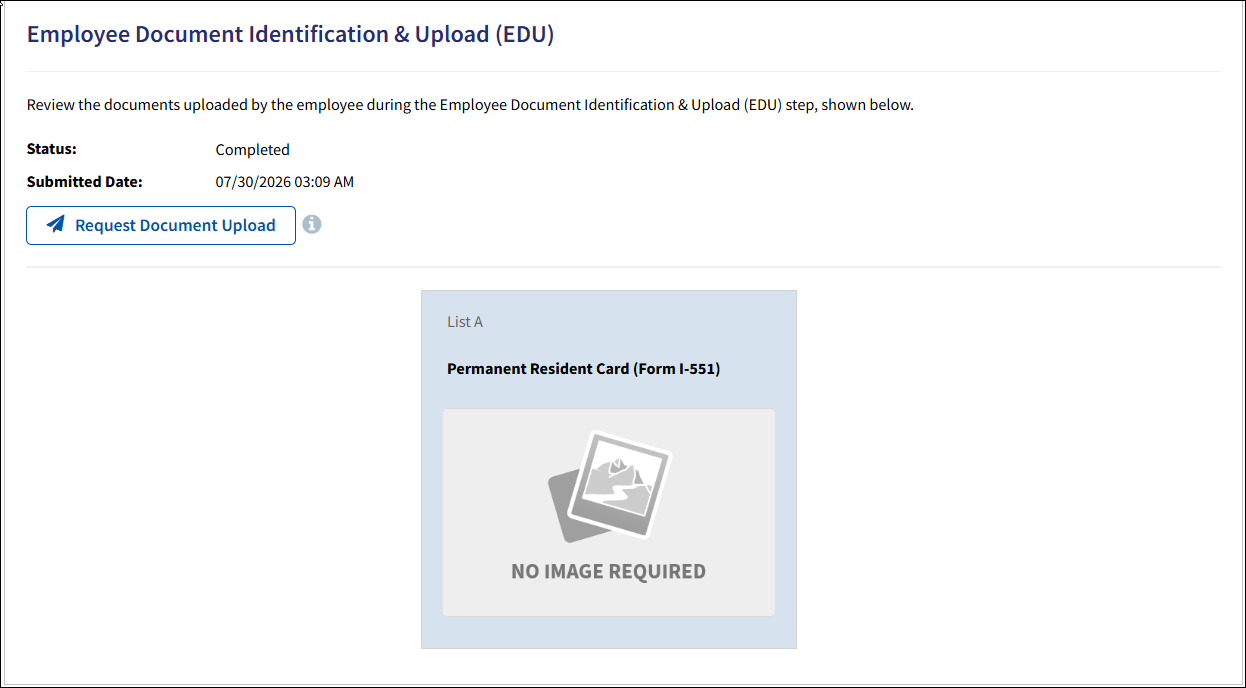
The following image illustrates the EDU section on the I-9 Manager Waiting page with employee uploaded documents.

EDU Status
The Status field indicates the employee's progress in completing the EDU step.
The following table describes the available EDU statuses:
| EDU Status | Description |
|---|---|
| Not Started | The employee completed Section 1 but has not yet uploaded documents or selected Upload Later during the EDU step. |
| Skipped | The employee selected Upload Later during the EDU step. |
| Completed | The employee has uploaded their required documents and completed the EDU step. |
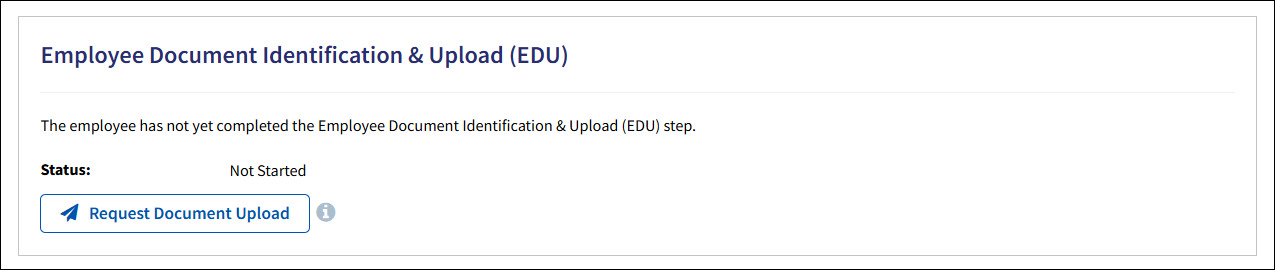
Not Started
Not Started is the default status once the employee completes Section 1, and the Employee Document Upload section becomes visible on the I-9 Manager Waiting page. The status remains Not Started until the employee uploads documents or selects Upload Later.
Skipped
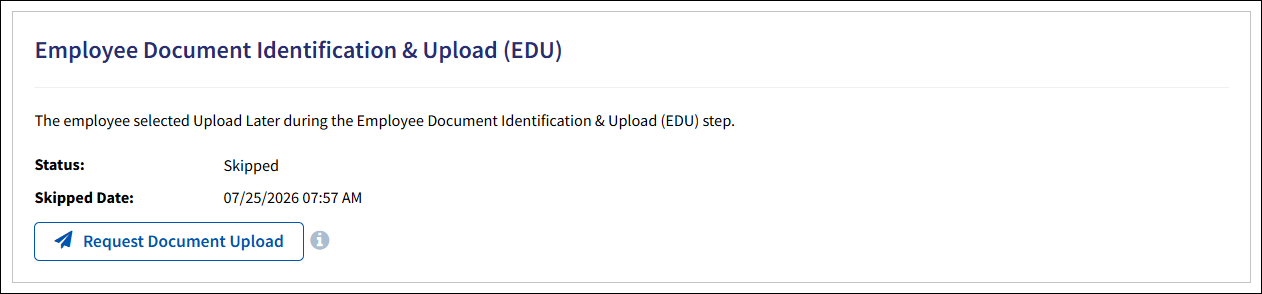
The Status field displays Skipped when the employee selects Upload Later during the EDU step.
The Skipped Date displays the date and time the employee selected Upload Later.
Note: The Skipped Date may not be available for records where the employee selected Upload Later before this feature was released.
Completed
The Status field displays Completed when the employee has uploaded their required documents and completed the EDU step.
The Submitted Date displays the date and time the employee completed the EDU step.

Uploaded documents are displayed in the Employee Document Upload section. To view an uploaded document, click the View icon to open the document in a new browser tab.

Note: Documents uploaded by the employee during the EDU step remain visible in the Employee Document Upload section even if the Authorized Representative rejects or removes them before completing Section 2. These documents are view-only within this section and cannot be approved, rejected, or deleted here. Documents uploaded separately by the Authorized Representative are not displayed in this section.
Documents Displayed in the EDU Section
The documents displayed in the EDU section depend on the client's E-Verify attachment settings and Remote Document Inspection (RDI) configuration.
The following table describes the documents displayed for each configuration:
| Configuration | Documents Displayed |
|---|---|
| E-Verify disabled with No Attachment |
Displays the selected List A, List B, and List C document names with the NO IMAGE REQUIRED placeholder.
|
| E-Verify disabled with All Attachment | Displays front images for the uploaded List A, List B, and List C documents. |
| E-Verify enabled with E-Verify Photo Match | Displays front and back images for List A Photo Match documents. Non-Photo Match List A documents and List B and List C documents display the NO IMAGE REQUIRED placeholder. |
| E-Verify enabled with All Attachment | Displays front and back images for List A documents and front images for List B and List C documents. |
| E-Verify enabled with E-Verify Photo Match or All Attachment, and RDI is also enabled | Displays front and back images for all uploaded List A, List B, and List C documents. |
Request Document Upload
The Request Document Upload option is displayed in the EDU section for Not Started, Skipped, and Completed statuses before Section 2 is signed and completed.
I-9 Managers can use this option to request document uploads when documents are missing, incorrect, or unreadable.
After a request is sent, the EDU section displays the Document Upload Request Sent field with the date and time of the most recent request in the I-9 Manager’s configured time zone.
Send a Document Upload Request
- Open the applicable I-9 record.
- Review the EDU status and available document images.
- Hover over the Information icon next to Request Document Upload to view a description of the request.

- Click Request Document Upload button.
The confirmation message is displayed.

- No – Closes the confirmation message without sending the request.
- Yes – Sends a document upload request email to the employee.

- Select OK to dismiss the confirmation message.
- The EDU section is refreshed. The Document Upload Request Sent field is displayed with the date and time of the document upload request.

- Hover over the Request Document Upload button to view the employee's email address and the date and time of the most recent document upload request.

The employee then:
- Reviews the document upload request email.
- The Employee can launch the EDU page by clicking on the Employment Authorization and Identity Document page link and complete the EDU step.
For more information about completing the EDU step, refer to the Employee Document Identification & Upload (EDU) Guide.
EDU Status After a Request
After a document upload request is sent, the EDU status is reset to Not Started.
| Previous EDU Status | Updated EDU Display |
| Not Started | The status remains Not Started. |
| Skipped | The status changes to Not Started, and the Skipped Date is removed.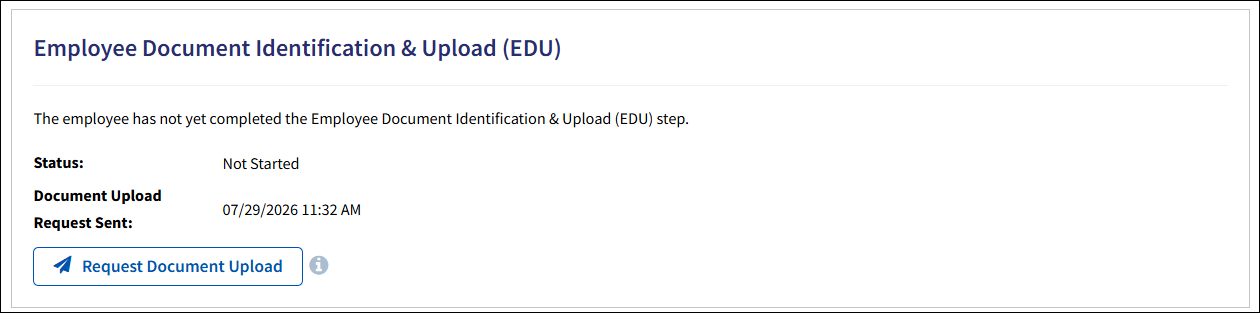 |
| Completed | The status changes to Not Started, and the Submitted Date and document tiles are removed. |
The Document Upload Request Sent field displays the date and time of the most recent request.
EDU Status for Remote Section 1 Only Workflow
For the Remote Section 1 Only workflow, the EDU status is displayed above the Employment Verification Documents section on the Onsite Section 2 page.
The EDU status banner is displayed when the EDU status is Not Started or Skipped.
When the status is Completed, the banner is not displayed. Uploaded documents appear directly in the Employment Verification Documents section.
Not Started
The Not Started banner indicates that the employee has not completed the EDU step.
If a document upload request has previously been sent, the banner also displays the employee's email address and the date and time of the most recent document upload request.
The following examples illustrate the Not Started banner before and after a document upload request has been sent.


Skipped
The Skipped banner indicates that the employee selected Upload Later during the EDU step.
When available, the banner displays the Skipped Date.
If a document upload request has previously been sent, the banner also displays the employee's email address and the date and time of the most recent document upload request.
The following examples illustrate the Skipped banner before and after a document upload request has been sent.


Completed
When the EDU status is Completed, the EDU status banner is not displayed. Uploaded documents are displayed directly in the Employment Verification Documents section.
Administrative Options and EDU Status
When an I-9 Manager uses Administrative Options to change or stop a remote workflow, the EDU status and Employee Document Upload section are affected as follows.
| Administrative Option | Applicable Workflows | Impact on EDU Status | Impact on Employee Document Upload Section |
|---|---|---|---|
|
Change I-9 Workflow |
All remote workflows |
Preserved. |
Continues to display on the new workflow's I-9 Manager Waiting page based on the preserved status. Note: When the workflow is changed from Remote Section 1 Only to a remote Section 2 workflow, the banner on the Remote Section 1 Only page transitions to the full Employee Document Upload section on the new workflow's I-9 Manager Waiting page, following the same rules above. |
|
Retain Section 1 and Restart Before Section 2 completion |
Employee Appoint, Employer Appoint, Network Alliance, I-9 Pro |
Resets to Not Started. Uploaded documents are removed. |
Displays with Not Started status. |
|
Retain Section 1 and Restart After Section 2 completion |
Employee Appoint, Employer Appoint, Network Alliance, I-9 Pro
|
Resets to Not Started. Uploaded documents are removed. |
Displays with Not Started status. The employee will need to complete the document upload step again before the next Section 2 attempt. |
|
Delete and Restart |
All remote workflows |
Does not carry over to the new record. |
New record begins with Not Started status. |
|
Stop Employee Appoint Process / Stop Remote Access Workflow |
Employee Appoint, Employer Appoint |
Workflow converts to onsite Section 2 completion. EDU status and timestamps are preserved. |
Not displayed after conversion. If the EDU status was Completed, uploaded documents are carried over and displayed in the Section 2 document tiles. If the status was Not Started or Skipped, the standard onsite Section 2 document selection is presented. |
|
Stop Remote Access Workflow |
Network Alliance, I-9 Pro |
Preserved. Record converts to Employer Appoint workflow. |
Displays on the Employer Appoint I-9 Manager Waiting page based on the preserved status. |
Note: The Request Document Upload button is not displayed on the banner for the Remote Section 1 Only workflow because this option is already available under Administrative Options. To send a document upload request for a Remote Section 1 Only record, select Administrative Options and use the Request Document Upload option available there.
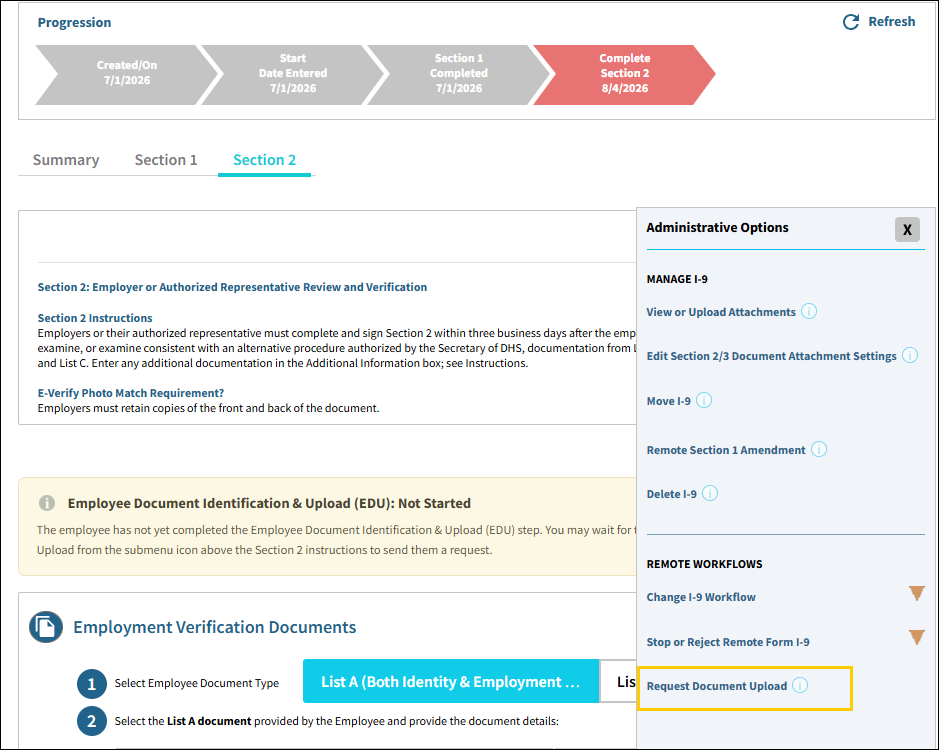
To track EDU status and document upload activity across I-9 records, Tracker I-9 includes new EDU fields in the I-9 Record Summary List View and I-9 Custom Report.
Reporting - I-9 Record Summary List View
The I-9 Record Summary List View includes a EDU Status filter and two new columns - EDU Status and EDU Activity Date - that provide visibility into employee document upload activity.
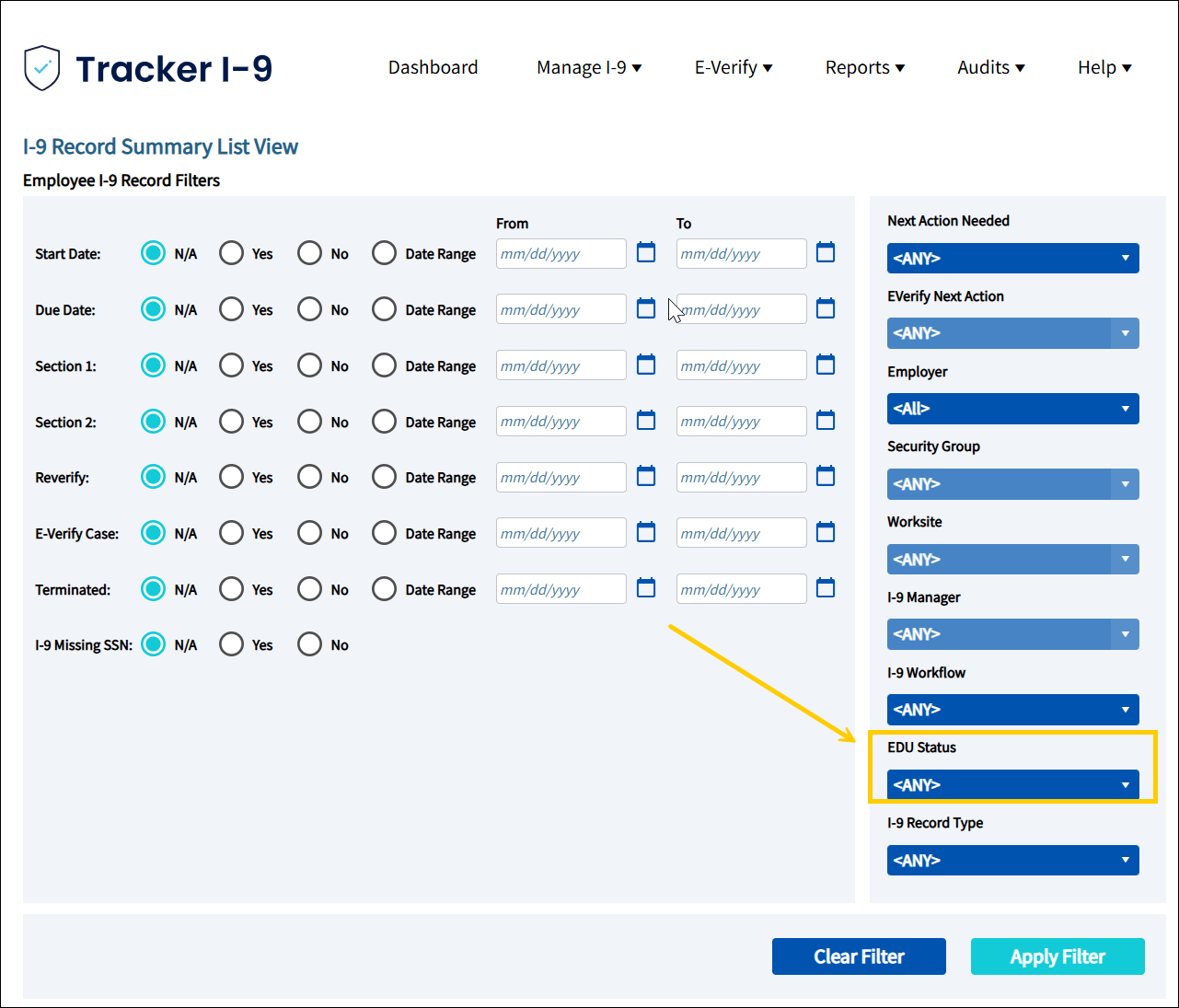
The EDU Status filter allows you to filter report results using the following values:
- Completed
- Not Started
- Skipped

The report results include the following columns:
- EDU Status – Displays the current EDU status for the I-9 record.
- EDU Activity Date – Displays the date the employee submitted their documents or selected Upload Later. This field is blank when the EDU status is Not Started.

The EDU columns are also included when the report is exported to Excel.
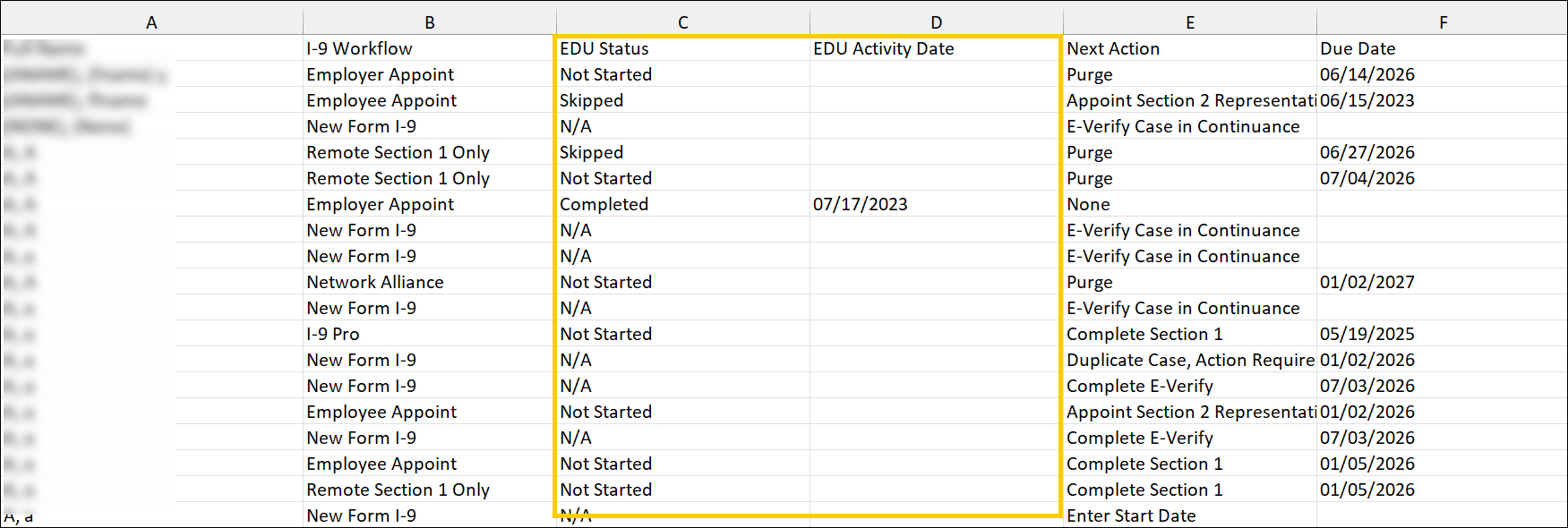
For I-9 records that do not support EDU - such as New Form I-9, Historical I-9, and Resolve I-9 - the EDU Status column displays N/A.
Reporting - I-9 Custom Report
The I-9 Custom Report includes the following new EDU fields:
- EDU Status
- EDU Submitted Date
- EDU Skipped Date
The EDU fields are available from the Available Fields list. To locate them, search for EDU, Submitted, Skipped, or Status in the search box, or select the All or Form I-9 filter and can be added to the report results and Excel export.

