

Synchronizing Documents with the Document Sync Button
What is the Document Sync Button?
The Document Sync button allows users to manually synchronize documents between TeamConnect and your connected Document Management System (DMS), such as SharePoint, Box, or iManage. This ensures that changes made in your Document Management System (DMS) such as uploading, renaming, or moving files are accurately reflected in TeamConnect, and vice versa.
How Do I Use the Document Sync Button?
-
Open the required record in TeamConnect.
-
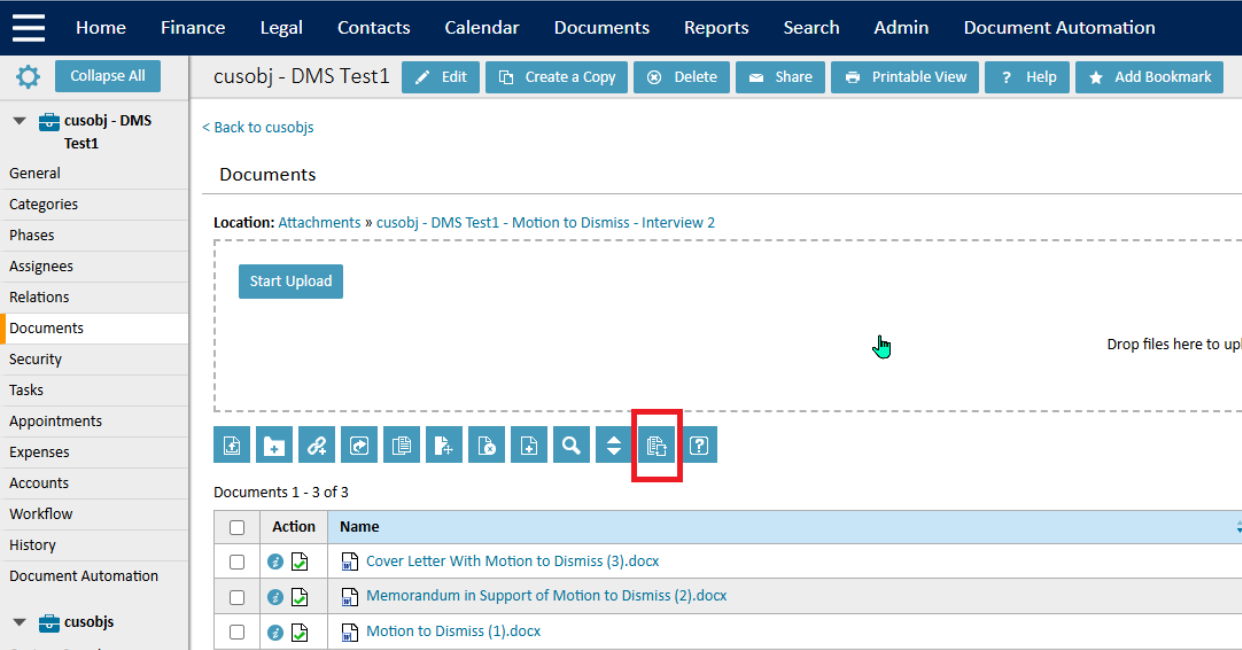
Locate the Document Sync button, typically found within the Documents tab or the record's toolbar.
-
Click on the button. TeamConnect will initiate a check for any changes in the connected Document Management System (DMS) and update the document list.
-
The latest documents and changes will be displayed in TeamConnect once the synchronization is complete.
When Should I Use the Document Sync Button?
Users can use the Document Sync button in these scenarios:
- After bulk changes in your DMS: Use the sync button to update TeamConnect after performing bulk changes (such as uploading, renaming, or moving documents) directly in your Document Management System (DMS).
- To resolve document mismatches: If a document is visible in your Document Management System (DMS) but not in TeamConnect (or vice-versa), running a sync can help resolve the discrepancy.
- After connecting a record to a new DMS: To import existing documents from an external Document Management System (DMS) after initially linking it to a TeamConnect record, use the sync button.
Tags recommended by the template: article:topic