

Resetting Your MFA Device
This document details the procedures for resetting registered Multi-Factor Authentication (MFA) device in Collaborati.
If a user needs to change the registered MFA device, you can reset it in the preferences page by following below instructions.
- Navigate to Preferences: Go to the preferences page.
- Initiate Reset: Click 'Reset my MFA device' on the preferences page.

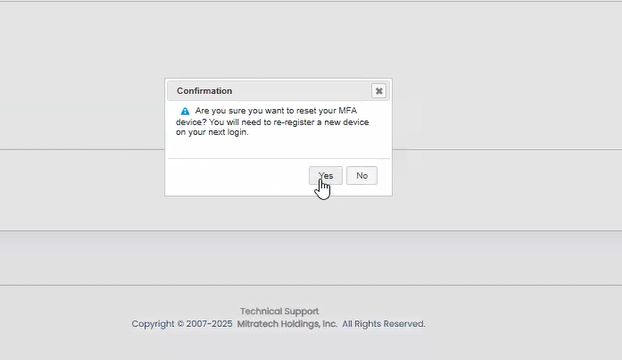
- Confirm Reset: A confirmation pop-up will appear. Click "Yes" to proceed with the reset.
- Log Out and Log In: Log out of Collaborati.
- New Registration Flow: When the user logs in again, the system will restart the MFA flow, asking for the email verification token first, rather than the app-based token.
- Complete New Setup: After completing the email-based authentication, the QR code screen will display, allowing the user to set up the authenticator app on a different device.