

Overview of Upload PDF Invoices
Note: Before accessing the Upload PDF invoice, ensure that the PDF Invoice Upload Client settings are enabled at both the Client and Firm Office levels. These settings can be enabled by M-Admins users. Without this setup, the Upload PDF Invoices tab will not be accessible.
Please note that Alternate Fee Arrangements (AFAs) and Total Fee invoices are not supported through the PDF Invoice Upload feature. To submit invoices that include these billing arrangements, please create the invoices manually or upload them using a LEDES file. For more information, refer to your client's billing guidelines or see this article: Collaborati: How to create a total fees invoice - 3 variations
- To access the Upload PDF Invoices screen, navigate to the Invoices menu on the Collaborati homepage and click on the Upload PDF Invoices tab. Alternatively, you can access this tab via the Quick Links section.

-
For the first-time users, a popup displaying the Collaborati AI Terms & Conditions will appear. Only Firm Admins can agree to these terms, and their acceptance grants all other users in the firm access to this feature.

- When the Upload PDF Invoices tab is accessed, the corresponding screen provides an overview of the PDF Invoice Workflow and lists the possible statuses a PDF invoice can go through before final submission. For more information about the Status of PDF Invoice.

-
Below the Status section on the Upload PDF Invoices screen, locate the fields required to upload a PDF invoice. Fill in all necessary information in the fields provided as per the instructions and requirements provided and users can download the sample invoice template to upload on the screen.
Note: Carefully review the instructions provided in the Upload PDF Instructions and Requirements section before proceeding to Upload PDF Invoice.

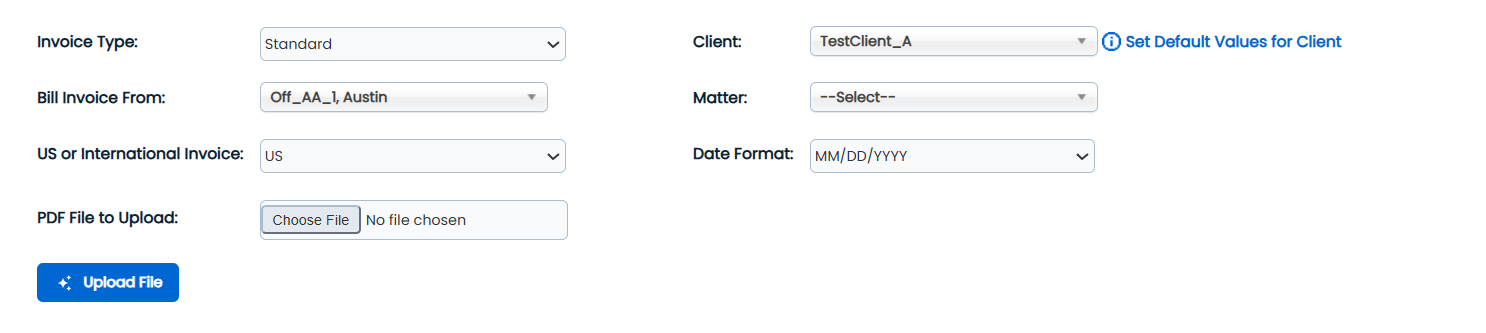
| Name of the Field | Description |
| Client | Select the client associated with the invoice. |
| Invoice type | Choose the type of invoice to upload. |
| Bill Invoice From | Select the Office name associated with the invoice. |
| US or International Invoice | Choose the appropriate invoice type from the drop-down list. By default, US is selected. Select International if the invoice applies to a non-US transaction. |
| Matter | Select the matter related to the invoice. |
| Data Format |
Choose the appropriate date format:
|
| PDF File to Upload | Upload PDF invoice file. |
-
After filling in all the required fields, click the Upload PDF button. The system will validate the file. If no errors are detected, the PDF will upload successfully, and a success message will display on the screen.
Note: Collaborati AI may take some time to process the uploaded PDF invoice. If email notifications are enabled, you will receive an email notification once the processing is complete.

- After uploading, scroll down to the table at the bottom of the page to review the uploaded PDF invoice and its status.
- Users can filter uploaded PDF invoices by entering or selecting the required details in the Search Filters section.

| Name of the Field | Description |
| File Name | Select the file name associated with the invoice. |
| Invoice Number | Enter the generated invoice number. |
| File Status | Select the status of the invoice file from the drop-down list. |
| Currency | Select the currency shown on the invoice from the drop-down list. The default selection is Any. |
| Upload Date | Select the date range during which the invoice was uploaded. |
- All uploaded invoices are displayed in a table at the bottom of the Upload PDF Invoices screen, showing their statuses for easy monitoring. If errors are identified in the uploaded PDFs, users can review and update the invoices before resubmitting them for approval.

-
By Clicking on the Invoice number users will be redirected to Preview and Submit screen on this screen users can compare the uploaded PDF Invoices with the Original Invoice which will be automatically attached to the invoice record before sending it to client approval if there are no errors.


Uploaded PDF File Error Validations
When users click the Upload File button, Collaborati will validate the uploaded PDF file and display appropriate error messages under the following conditions:
| Scenario | Error Message |
| No file selected | Please select a valid file to upload. |
| File format is not PDF | Invoice upload file contains invalid format. |
| Fields (Client, Bill Invoice From and Matter) is empty | Missing required field for file upload. |
| PDF file size exceeds 20 MB | (File Name) exceeds the 20 MB limit.. |